- Doc Layout
- Installation
-
Component
- Styling
- Formatting
VSCode Customization
VSCode - Set up https for vscode live preview
https security protocol setup with private key and certificate
Introduction
Vscode live preview default protocol is http. To setup https protocol to have secure transmission of data and header, you can try the following procedure. This instruction is for Apple Mac and Linux.
Setup
1. Create a private key
Using terminal application, change the current directory to a directory where the private key to be kept. A password will be required to open the file and to use it. This requires openssl software installed. This will create an output file localhost.key (can be named anything, with .key extension).
openssl genrsa -aes256 -out localhost.key 2048
2. Create the Certificate
This will create output localhost.pem (can be named anything, with .pem extension). Answer the question prompts that are asked while executing the command.
openssl req -days 3650 -new -newkey rsa:2048 -key localhost.key -x509 -out localhost.pem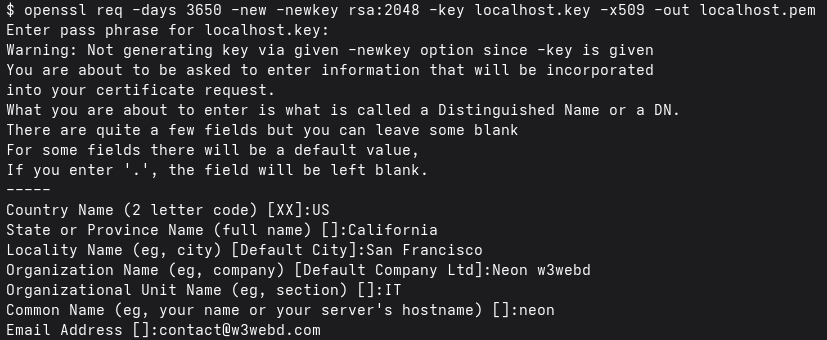
3. Setup .vscode settings json file
a. Create a .vscode directory
Create a .vscode directory folder in the project root folder. This will contain the settings json file created with settings info.
mkdir .vscodeb. Create a "settings.json" file
create a json file inside the .vscode folder
cd .vscode ;
touch settings.jsonc. Settings.json content
Add the following json conent to the settings.json file. the location of the certificate and key files are to be modified to address user stored location. Also, modify the passphrase/password used while creating the files.
{
    "liveServer.settings.port":5501,
    "liveServer.settings.root":"/",
    "liveServer.settings.CustomBrowser":"chrome",
    "liveServer.settings.https":{
          "enable":true,
          "cert":"/Users/user1/folder/location/of/the/key/certificate/files/https/localhost.pem",
          "key":"/Users/user1/folder/location/of/the/key/certificate/files/https/localhost.key",
          "passphrase":"usersownpassword"
    }
}